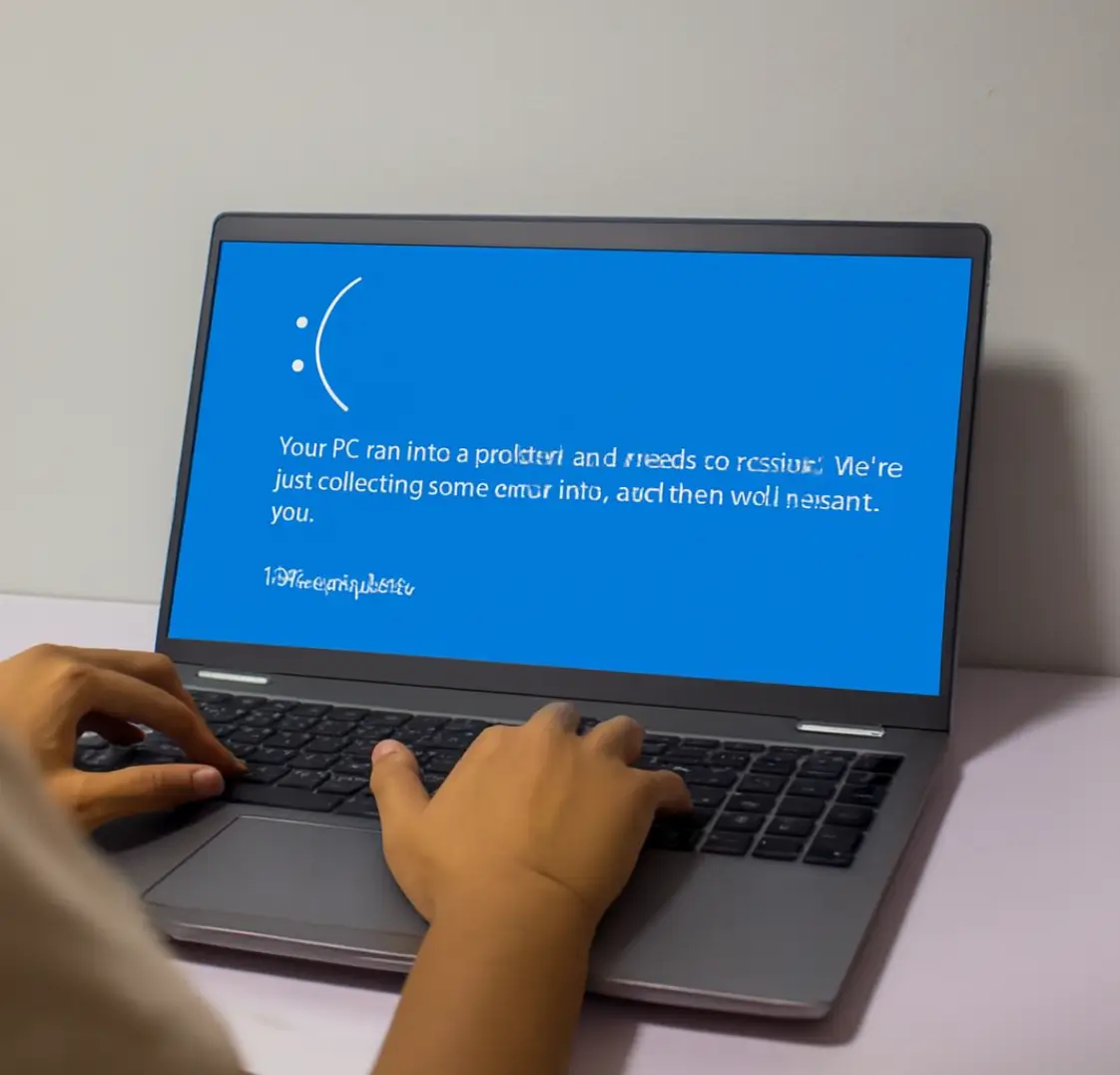
This usually means your computer is unable to read or write data to the connected hard drive. While it may look serious, the issue can often be resolved using simple troubleshooting steps — unless the drive has physical damage.
In this guide, we’ll explain:
-
What an I/O device error means
-
Why it happens
-
Step-by-step fixes
-
When to seek professional data recovery
What Is an I/O Device Error?
An I/O (Input/Output) device error occurs when your system fails to communicate with a storage device. This problem can affect:
-
External hard drives
-
Internal HDDs & SSDs
-
USB flash drives
-
SD cards
-
CDs/DVDs
In simple terms, your computer tries to access the disk, but the communication fails.
Why Does I/O Device Error Occur?
Here are the most common causes:
1. Faulty USB Port
A damaged or unstable USB port may prevent proper data transmission.
2. Loose or Damaged Cable
Broken internal wiring inside the USB cable can cause connection interruptions.
3. Corrupted or Outdated Drivers
If your storage controller drivers are outdated or corrupted, Windows may fail to read the drive.
4. Incorrect Drive Letter Assignment
Sometimes the operating system fails to assign a proper drive letter.
5. File System Corruption
Improper ejection, sudden power cuts, or malware can damage the file system.
6. Physically Damaged Hard Drive
Clicking noise, overheating, or dropping the drive can cause hardware failure.
How to Fix I/O Device Error in External Hard Drive
Follow these methods in order.
Step 1: Check Basic Hardware Issues
✔ Try a Different USB Port
Disconnect the drive and connect it to another port directly (avoid USB hubs).
✔ Replace the USB Cable
Use a new, high-quality cable to rule out cable failure.
✔ Connect to Another Computer
Testing on another PC helps confirm whether the issue is system-related or drive-related.
Step 2: Update or Reinstall Drivers
Outdated drivers frequently cause I/O errors.
How to Update Drivers:
-
Press Windows + X
-
Select Device Manager
-
Expand Disk Drives
-
Right-click your external hard drive
-
Click Update Driver
Restart your system after updating.
Step 3: Run CHKDSK Command
If the issue is due to file system corruption:
-
Press Windows + R
-
Type
cmdand press Enter -
Run the command:
Replace X with your drive letter.
⚠ Warning: Avoid this step if you suspect physical damage.
Step 4: Change Transfer Mode (Advanced Fix)
Incorrect transfer mode settings can cause I/O problems.
-
Open Device Manager
-
Go to IDE ATA/ATAPI Controllers
-
Open channel properties
-
Change transfer mode to DMA if available
Restart your PC.
Step 5: Assign a New Drive Letter
-
Press Windows + X
-
Select Disk Management
-
Right-click the affected drive
-
Click Change Drive Letter and Paths
-
Assign a new letter
When NOT to Try DIY Fixes
Stop immediately if you notice:
-
Clicking or grinding noises
-
Drive not spinning
-
Burning smell
-
System freezing when drive connects
These are signs of physical hard drive damage.
Attempting software fixes on physically damaged drives can permanently destroy data.
Can Data Be Recovered After I/O Error?
Yes — in most cases.
Recovery success depends on:
-
Whether the damage is logical or physical
-
Whether data has been overwritten
-
How quickly you stop using the drive
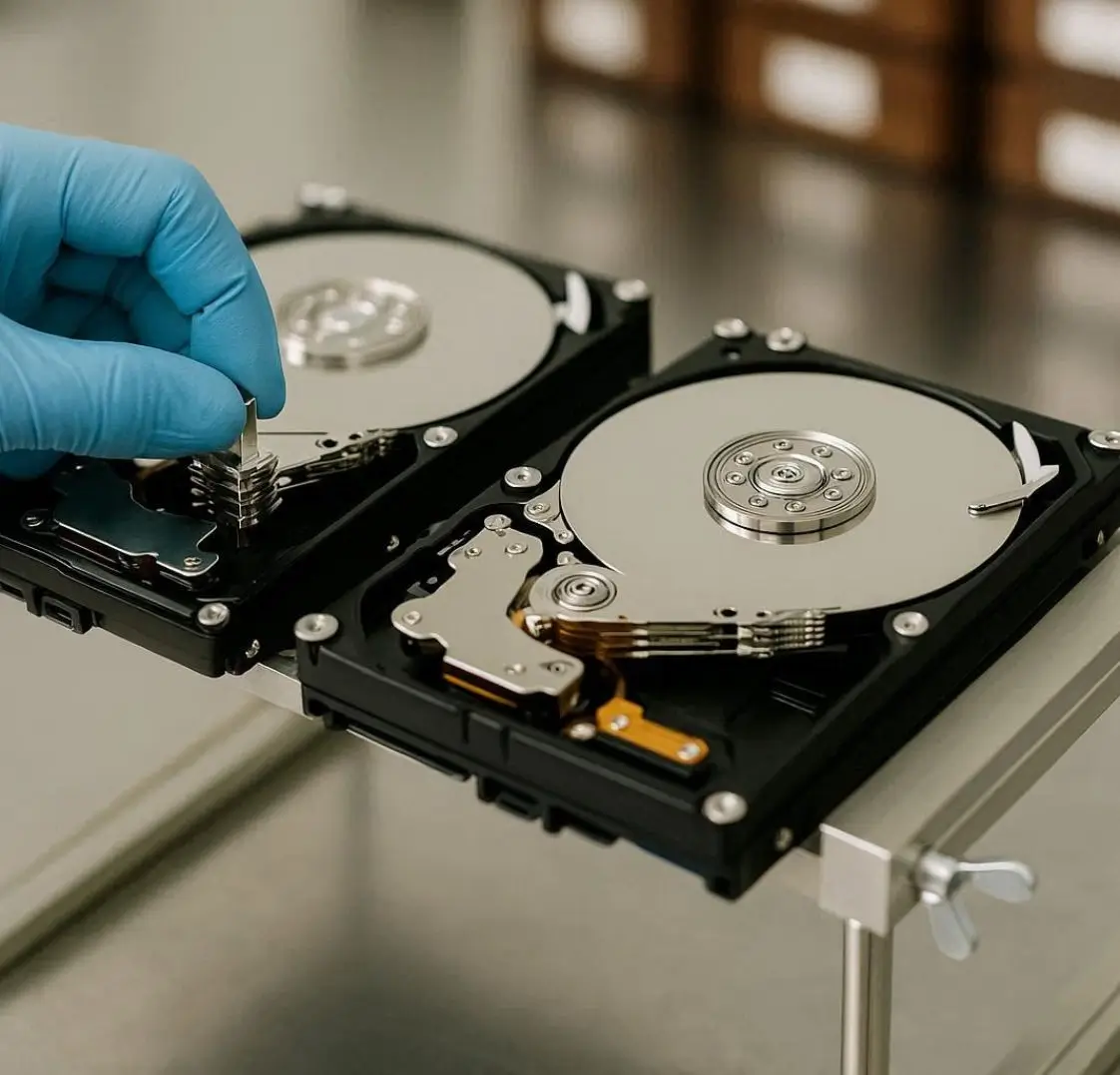
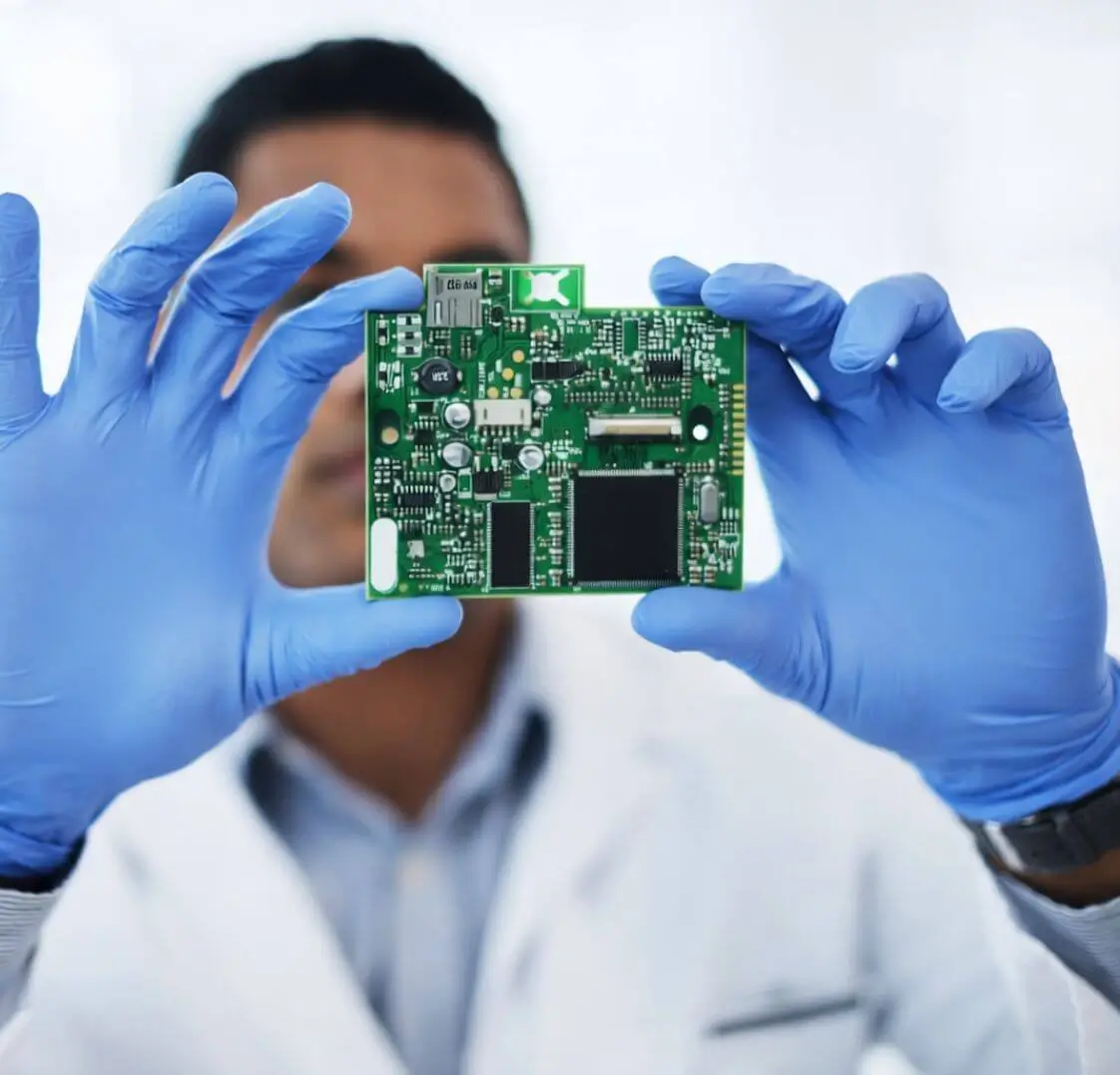
Professional data recovery labs use:
-
Cleanroom environments
-
Sector-by-sector cloning
-
Advanced firmware repair tools
How to Prevent I/O Errors in Future
-
Always eject external drives safely
-
Avoid sudden power cuts
-
Keep drivers updated
-
Use surge protectors
-
Maintain regular data backups
Final Thoughts
An I/O device error is usually fixable if handled correctly and quickly. Start with simple hardware checks, then move to driver and system fixes. However, if you suspect physical damage, consult a professional data recovery expert immediately.