
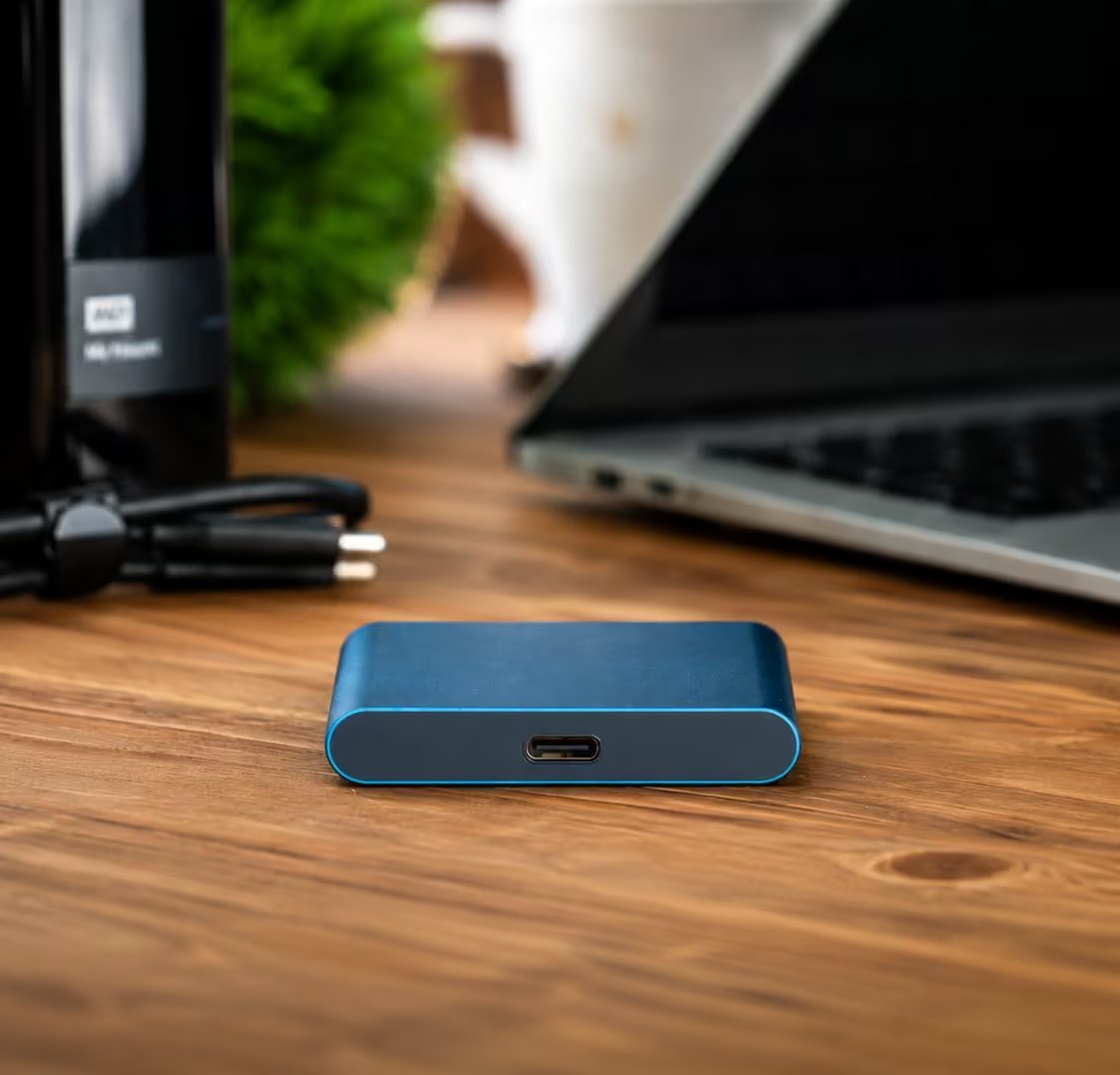
This usually means your computer is unable to read or write data to the connected hard drive. While it may look serious, the issue can often be resolved using simple troubleshooting steps — unless the drive has physical damage.

In this guide, we’ll explain:

  • What an I/O device error means

  • Why it happens

  • Step-by-step fixes

  • When to seek professional data recovery


What Is an I/O Device Error?

An I/O (Input/Output) device error occurs when your system fails to communicate with a storage device. This problem can affect:

  • External hard drives

  • Internal HDDs & SSDs

  • USB flash drives

  • SD cards

  • CDs/DVDs

In simple terms, your computer tries to access the disk, but the communication fails.


Why Does I/O Device Error Occur?

Here are the most common causes:

1. Faulty USB Port

A damaged or unstable USB port may prevent proper data transmission.

2. Loose or Damaged Cable

Broken internal wiring inside the USB cable can cause connection interruptions.

3. Corrupted or Outdated Drivers

If your storage controller drivers are outdated or corrupted, Windows may fail to read the drive.

4. Incorrect Drive Letter Assignment

Sometimes the operating system fails to assign a proper drive letter.

5. File System Corruption

Improper ejection, sudden power cuts, or malware can damage the file system.

6. Physically Damaged Hard Drive

Clicking noise, overheating, or dropping the drive can cause hardware failure.


How to Fix I/O Device Error in External Hard Drive

Follow these methods in order.


Step 1: Check Basic Hardware Issues

✔ Try a Different USB Port

Disconnect the drive and connect it to another port directly (avoid USB hubs).

✔ Replace the USB Cable

Use a new, high-quality cable to rule out cable failure.

✔ Connect to Another Computer

Testing on another PC helps confirm whether the issue is system-related or drive-related.


Step 2: Update or Reinstall Drivers

Outdated drivers frequently cause I/O errors.

How to Update Drivers:

  1. Press Windows + X

  2. Select Device Manager

  3. Expand Disk Drives

  4. Right-click your external hard drive

  5. Click Update Driver

Restart your system after updating.


Step 3: Run CHKDSK Command

If the issue is due to file system corruption:

  1. Press Windows + R

  2. Type cmd and press Enter

  3. Run the command:

chkdsk X: /f /r

Replace X with your drive letter.

⚠ Warning: Avoid this step if you suspect physical damage.


Step 4: Change Transfer Mode (Advanced Fix)

Incorrect transfer mode settings can cause I/O problems.

  1. Open Device Manager

  2. Go to IDE ATA/ATAPI Controllers

  3. Open channel properties

  4. Change transfer mode to DMA if available

Restart your PC.


Step 5: Assign a New Drive Letter

  1. Press Windows + X

  2. Select Disk Management

  3. Right-click the affected drive

  4. Click Change Drive Letter and Paths

  5. Assign a new letter


When NOT to Try DIY Fixes

Stop immediately if you notice:

  • Clicking or grinding noises

  • Drive not spinning

  • Burning smell

  • System freezing when drive connects

These are signs of physical hard drive damage.

Attempting software fixes on physically damaged drives can permanently destroy data.


Can Data Be Recovered After I/O Error?

Yes — in most cases.

Recovery success depends on:

  • Whether the damage is logical or physical

  • Whether data has been overwritten

  • How quickly you stop using the drive

Professional data recovery labs use:

  • Cleanroom environments

  • Sector-by-sector cloning

  • Advanced firmware repair tools


How to Prevent I/O Errors in Future

  • Always eject external drives safely

  • Avoid sudden power cuts

  • Keep drivers updated

  • Use surge protectors

  • Maintain regular data backups


Final Thoughts

An I/O device error is usually fixable if handled correctly and quickly. Start with simple hardware checks, then move to driver and system fixes. However, if you suspect physical damage, consult a professional data recovery expert immediately.

Slashdot is a long-running platform featuring tech news, developer discussions, and user-submitted stories. It covers software, hardware, cybersecurity, and open-source topics, with active community comments providing diverse perspectives and insights on current technology trends and issues.

What Causes an I/O Device Error and When to Stop Trying DIY Fixes

  • An I/O device error, formally an Input/Output device error, is one of the most alarming messages a computer can display when you connect an external hard drive. It means your operating system attempted to communicate with the storage device and the communication failed. The error can appear on Windows as “The request could not be performed because of an I/O device error” or as error code 0x8007045D, typically in File Explorer or during a file transfer. While the error sounds serious, the appropriate response depends entirely on the root cause, and correctly identifying that cause is the difference between a quick fix and a permanent data loss situation. Read on before touching any settings. If your drive is making unusual sounds, stop and call PCPrompt on +91 9995438806 before doing anything else.
  • Understanding what an I/O error actually means requires distinguishing between the two fundamentally different causes. The first type is a connection or software-level I/O error, caused by a faulty USB cable, a failing USB port, an outdated or corrupted device driver, an incorrect drive letter assignment, or a corrupted file system. These errors can often be resolved through troubleshooting steps without any risk to your data. The second type is a hardware-level I/O error, caused by physical damage inside the drive, bad sectors on the platters, a failing read/write head, PCB damage, or a dying spindle motor. Hardware-level I/O errors look identical on screen to software-level errors, but the appropriate response is completely different. Attempting software fixes on a physically failing drive can permanently destroy your data. Our HDD data recovery service covers all hardware-level I/O failure recovery scenarios.
  • Step 1: Listen to your drive. Before attempting any fix, connect the drive and listen carefully. A healthy drive spins up quietly, possibly with a brief seek noise, and then becomes silent. An unhealthy drive may click repeatedly, beep, grind, make a ticking or scraping sound, or spin up and immediately spin down. If you hear ANY of these sounds alongside the I/O error, stop immediately. Power down the drive, disconnect it, and contact a professional. Do not proceed with any of the software steps below. Every additional spin cycle on a physically damaged drive increases platter damage and reduces your recovery prospects. See our hard drive not detecting guide for a detailed breakdown of what each sound indicates.
  • Step 2: Check hardware connections. If the drive sounds normal, start with the simplest possible causes. Try a different USB cable, USB cable failures are extremely common, especially for drives that are moved frequently. Try connecting to a different USB port directly on the computer (not through a hub). Try connecting to a different computer entirely. If the drive works on another computer, the issue is with your original computer’s drivers or USB controller, not the drive itself. This basic hardware check eliminates the most common causes of software-level I/O errors in under five minutes. If the drive fails on multiple computers with multiple cables, the problem is with the drive itself.
  • Step 3: Update or reinstall device drivers. If hardware checks pass, the next step is updating the storage controller driver in Device Manager. Open Device Manager (Win + X → Device Manager), expand Disk Drives, right-click your external drive, and select Update Driver. Also check under IDE ATA/ATAPI Controllers and Universal Serial Bus Controllers for any flagged devices. After updating, restart your computer before retesting. Outdated USB 3.0 or USB-C controller drivers are a common cause of I/O errors in Windows 10 and Windows 11, particularly after major Windows updates that reset driver configurations. Our data recovery updates page covers driver-related issues that affect storage access.
  • Step 4: Assign a new drive letter. If the drive appears in Disk Management but not in File Explorer, it may lack a drive letter assignment. Open Disk Management (Win + X → Disk Management), locate your drive, right-click the volume, and select Change Drive Letter and Paths. Assign any available letter and click OK. This resolves I/O errors caused by drive letter conflicts, particularly common when drives are moved between computers with different existing drive letter assignments.
  • Step 5: Run CHKDSK, but only if the drive is physically healthy. CHKDSK is a file system repair tool that can fix certain types of file system corruption causing I/O errors. Open Command Prompt as Administrator and run chkdsk X: /f /r (replace X with your drive letter). The /f flag fixes errors, and /r scans for bad sectors and recovers readable information. Important warning: only run CHKDSK if your drive is spinning normally, sounds healthy, and is consistently detected. Running CHKDSK on a physically failing drive forces the drive to repeatedly retry bad sectors, accelerating mechanical damage. If CHKDSK runs for hours without completing, abort it immediately and seek professional help. See our USB drive recovery service if your external drive is a USB flash drive or portable SSD.
  • When to stop DIY attempts and call PCPrompt. If any of the following are true, stop all troubleshooting immediately and contact a professional: the drive makes any unusual sounds; CHKDSK hangs or takes more than a few hours; the drive shows as “Unknown” or “Not Initialized” in Disk Management; the drive appears to cycle through connecting and disconnecting repeatedly; the computer freezes or slows dramatically when the drive is connected; or you smell burning from the drive. These are all signs of physical or severe hardware-level damage that requires professional recovery tools. According to Seagate’s data recovery guidance, continued use of a physically damaged drive after an I/O error is one of the top causes of permanent, irrecoverable data loss.
  • If you’ve reached the point where DIY steps aren’t working or you’re unsure about the safety of proceeding, contact PCPrompt for a free assessment. Our engineers can assess your drive over the phone based on the symptoms you describe and advise you on the safest next steps. Call +91 9995438806, WhatsApp us, or visit our contact page. Our lab at Padmakshi Bldg, Perumanoor, Kochi is open Monday to Saturday, 9:30 AM to 5:00 PM. Also review our data recovery charges guide to understand what professional recovery costs before you visit.
your ideal recovery service
Related Articles & Guides