A hard drive not detecting is a common problem faced by computer users. Whether it is an internal hard disk or an external USB drive, the issue can lead to panic, especially when important files are stored on the device. Understanding the reasons behind this problem can help you take the right steps and avoid permanent data loss.
Analyzing Why a Hard Drive Is Not Detecting
When a hard drive is not detected by the system, it usually points to a deeper hardware or software-level failure. Identifying where the drive disappears — BIOS, OS, or external enclosure — helps narrow down the cause.
Common detection failure scenarios include:
- Drive not showing in BIOS or UEFI
- Hard disk missing in Disk Management
- External hard drive not recognized via USB
- Clicking, beeping, or spinning issues
- Drive detected but shows “No Media” or “Unallocated”
Each situation requires a different diagnostic and recovery strategy to avoid further damage.
Common Reasons for Hard Drive Detection Failure
Several factors can cause a hard drive to stop detecting unexpectedly. Some are minor and fixable, while others require professional data recovery intervention.
- Power surge or unstable voltage damage
- Firmware corruption or service area failure
- Bad sectors or head crash
- USB bridge or enclosure failure
- Accidental formatting or partition loss
Attempting DIY fixes without proper diagnosis may worsen the condition and reduce recovery chances.
Professional Hard Drive Not Detecting Solutions
1. BIOS & Firmware-Level Diagnosis
If a hard drive is not detected in BIOS, it often indicates firmware corruption or PCB failure. Specialized tools are required to access hidden service areas safely.
2. Logical Repair Without Data Loss
For drives detected but inaccessible, logical recovery techniques help restore partitions and file systems without overwriting data.
3. Physical Hard Drive Recovery
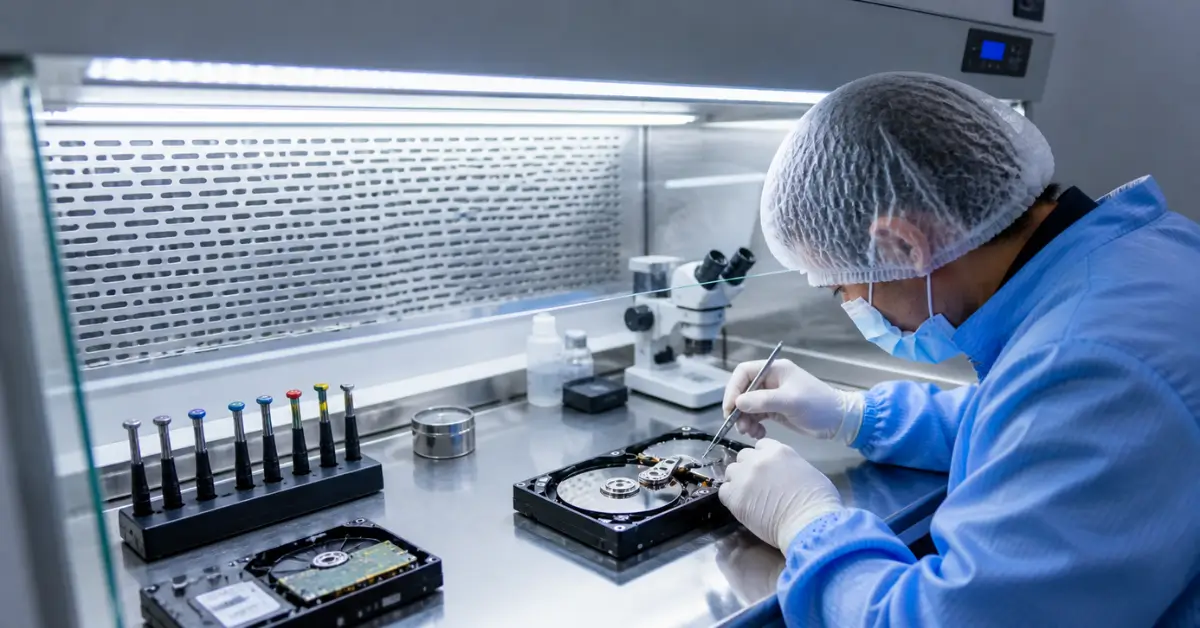
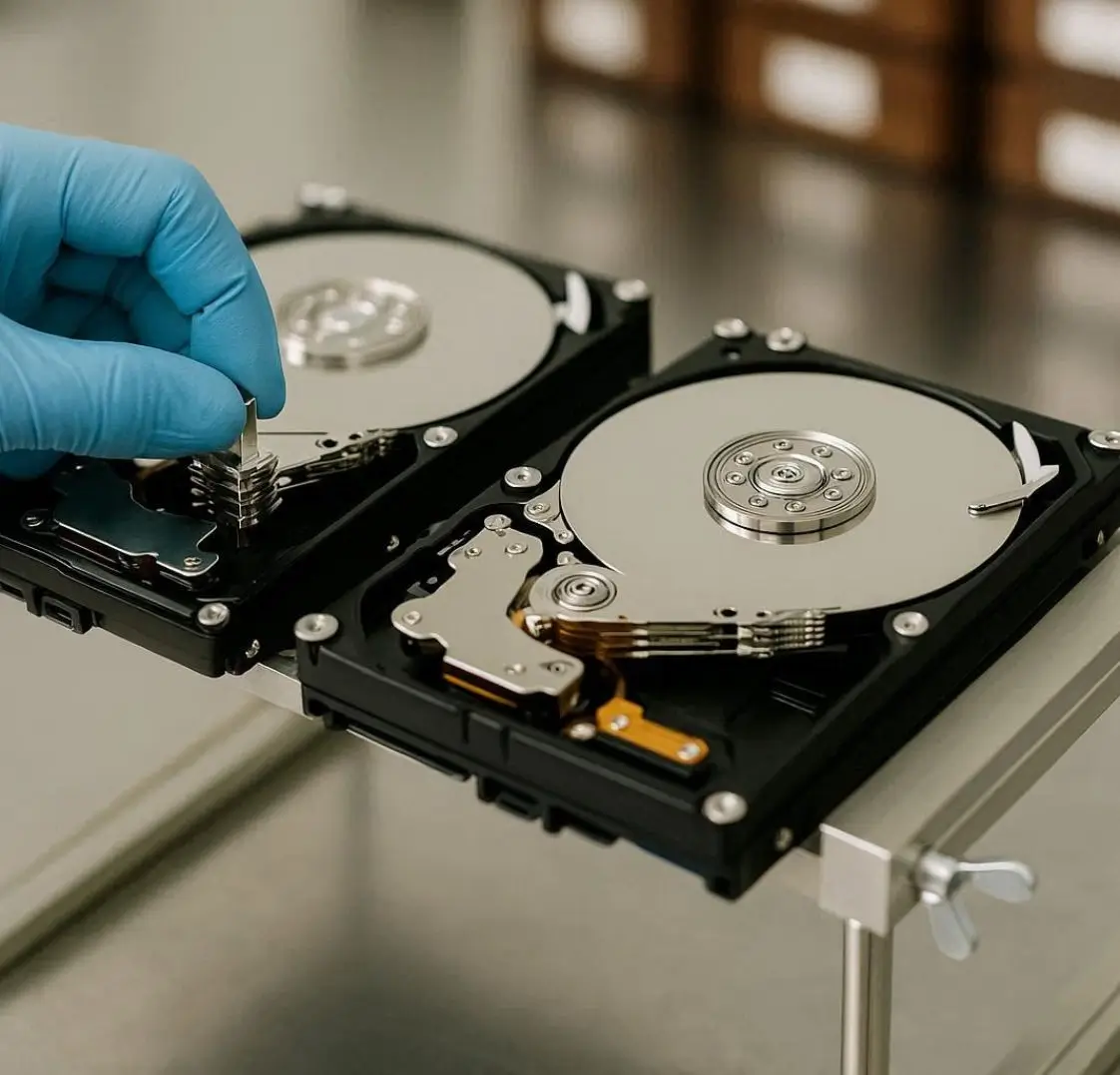
Drives with clicking sounds, no spin, or burnt components require cleanroom procedures such as head replacement or PCB repair.
4. External Hard Drive Detection Fix
External drives may fail due to USB controller issues. Direct SATA access is used to recover data securely.
We Recover Data from All Hard Drive Detection Failures
Our data recovery process is designed to handle every “hard drive not detecting” scenario with precision and care.
Internal Hard Drives
Recovery from SATA, IDE, and NVMe hard drives not detected in BIOS or OS.
External Hard Drives
Data recovery from USB drives not recognized, showing errors, or disconnecting frequently.
Laptop & Desktop Hard Drives
Specialized recovery from dropped, overheated, or power-damaged drives.
Trusted Hard Drive Not Detecting Recovery Experts
We follow a diagnose-first approach to determine the exact failure before recovery begins. This ensures maximum data safety and transparency.
When Your Hard Drive Is Not Detecting – Act Fast
Delaying recovery attempts can reduce success rates. If your hard drive is not detecting, stop using it immediately and avoid DIY software tools.
Early professional diagnosis increases recovery chances up to 95%, even in complex cases.